CoolTenders Guide
Subscriber Tutorial
Follow these steps to search, save, open BOQ/full tender pages, set alerts, and ask for help. The screenshots are from the mobile view. The same buttons are available on desktop.
Quick path for a new subscriber
1. Create account and login.
2. Save favorite mandals or departments.
3. Check My Area, save tenders, and set alerts.
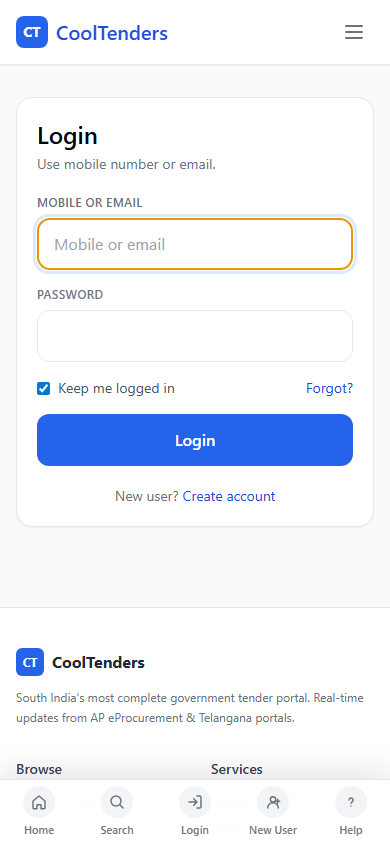
Step 1
Create account or login
Open CoolTenders and enter your mobile number or email.
- New users should tap Create account.
- Existing users can login with mobile number or email.
- Keep me logged in can stay selected on your own phone or computer.
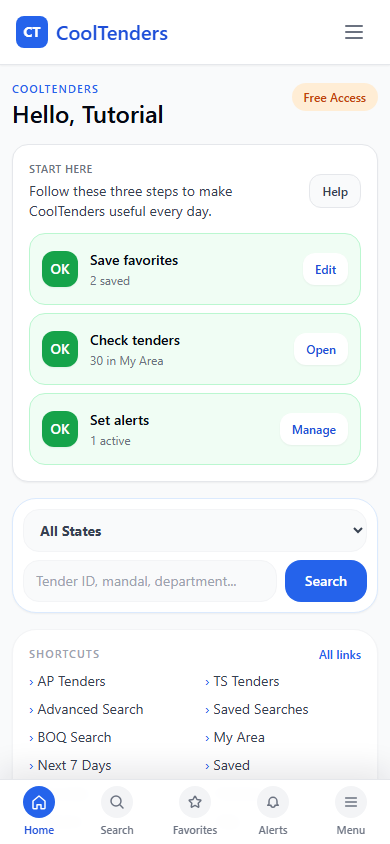
Step 2
Start from dashboard
After login, use the dashboard as your home screen.
- Search Tender is for tender ID, work name, mandal, or department.
- My Area shows tenders from your saved mandals and departments.
- Next 7 Days shows works closing soon.
- My Saved is your private tender desk.
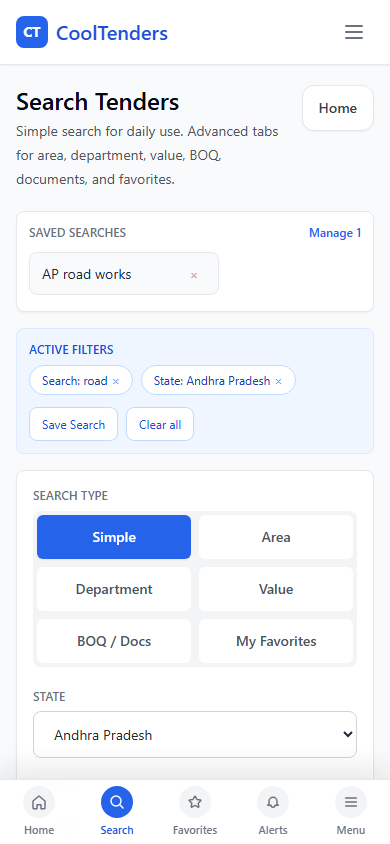
Step 3
Search by tender ID or words
Use Search when you already know a tender ID, NIT/IFB number, place, or work name.
- Use Simple search for most cases.
- Use Advanced tabs for area, department, value, dates, and BOQ filters.
- Use Clear if the result looks wrong because of old filters.
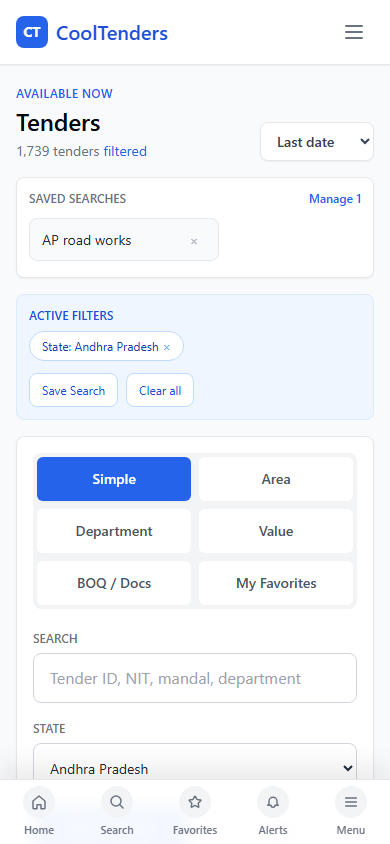
Step 4
Browse tender cards
Use Browse when you want to scan many tenders quickly.
- Simple card is best for mobile users.
- Detailed card shows more fields.
- Grid is useful on desktop for comparison.
- Open shows the full tender page. Save keeps it in My Tenders.
Step 5
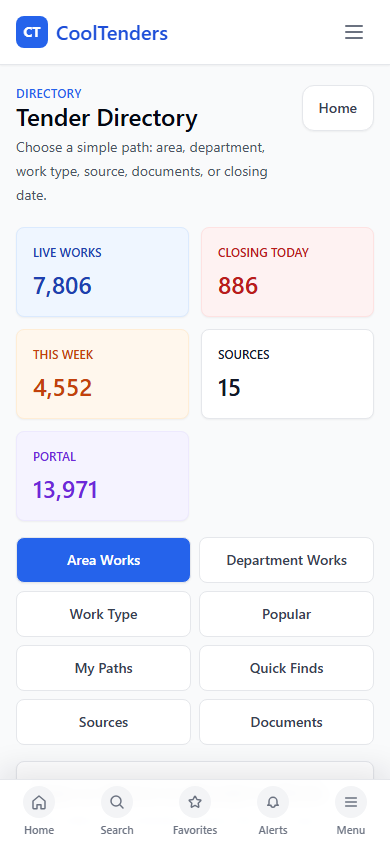
Use Directory for area and department paths
Use Directory when you prefer selecting State to District to Mandal, or Department to Circle.
- Area Works is for state, district, and mandal.
- Department Works is for department and circle.
- Save Path keeps that path for quick use later.
- Create Alert can make reminders from the selected path.
Step 6
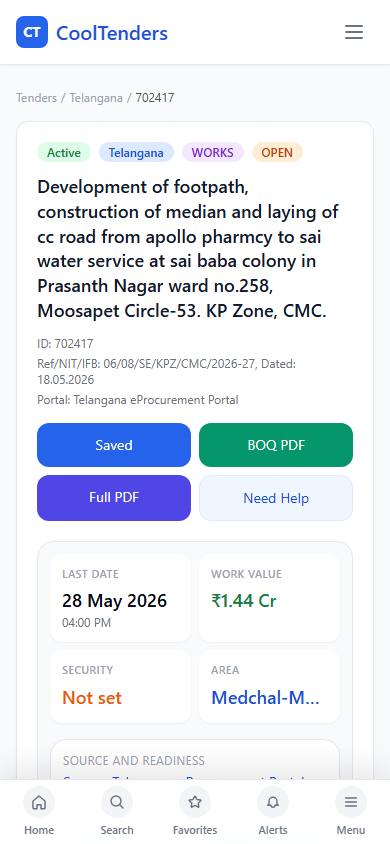
Open full tender details
Open a tender before deciding whether to quote.
- Check last date, value, EMD, department, circle, district, and mandal.
- Use BOQ View or BOQ PDF when BOQ is available.
- Use Full Tender View or Full Tender PDF for the captured official page.
- Use Help if you want CoolTenders team to check the tender.
Step 7
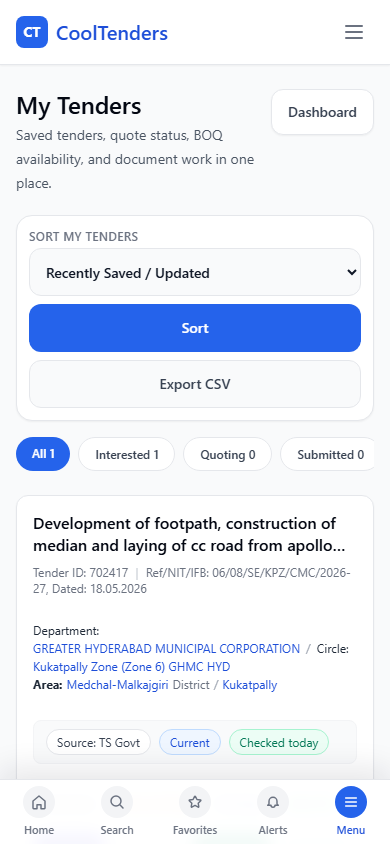
Manage saved tenders
Use My Tenders like your work desk.
- Save tenders you may quote.
- Change status such as Interested, Quoting, Needs Documents, Submitted, Won, or Lost.
- Add notes and quoted amount when needed.
- Export is useful on desktop for office work.
Step 8
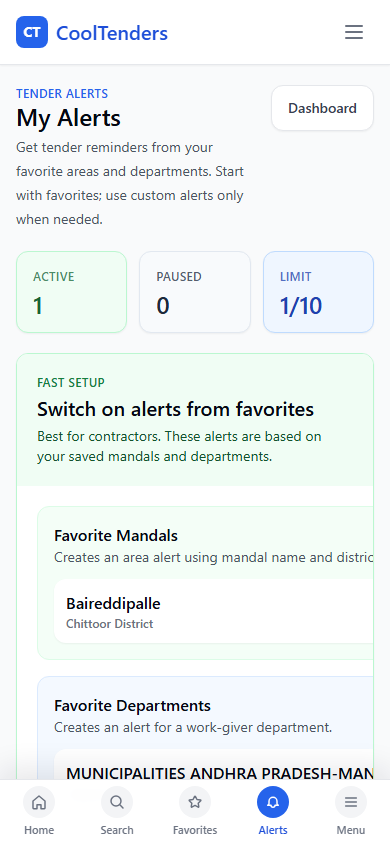
Set alerts
Use Alerts so important tenders do not depend only on manual checking.
- Start with favorite mandal and department alerts.
- Use custom alerts only when needed.
- Pause or delete alerts any time.
- If alerts are confusing, send a Help request and we can set them up.
Step 9
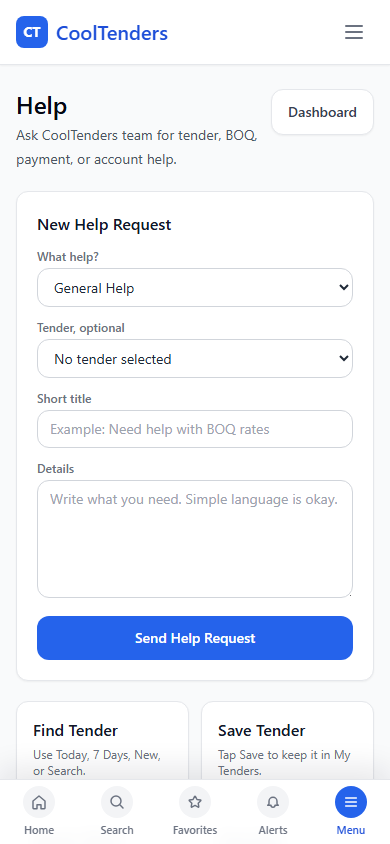
Ask for help
Use Help when you are stuck with a tender, BOQ, payment, account, or documents.
- Select the tender if the question is about one work.
- Write in simple language. That is enough.
- You can also call or WhatsApp support from the Contact page.
Daily routine
Morning: open Dashboard and check My Area.
Before office work: check Next 7 Days.
When interested: open tender, check BOQ, then Save.
When confused: use Help and mention the tender.